Help Library
Getting Started with Digital Planning
What is digital planning?
What is digital planning?
Digital planning is simply planning on a tablet instead of on paper. Instead of flipping through a physical planner, you open a specially designed PDF file inside a note-taking app on your iPad (or other tablet), and write on it with a stylus just like you would with pen and paper — except you also get the magic of tapping to navigate, undoing mistakes instantly, and decorating with digital stickers. It's the feel of a paper planner with the flexibility of a digital tool. No paper waste, no white-out, and your planner goes everywhere your tablet goes.
What is a digital planner and how is it different from a regular PDF?
What is a digital planner and how is it different from a regular PDF?
A digital planner is a PDF file that's been built with interactive hyperlinks embedded throughout it. That means you can tap on a tab, a date, or a button and instantly jump to the right page — just like clicking a link on a website. A regular PDF is static: you scroll page by page. A digital planner feels more like an app because of those built-in links, but it runs inside a note-taking app rather than being a standalone application. You can write, type, highlight, and add stickers on every page, and all of your notes are saved right inside the file.
What do I need to get started?
What do I need to get started?
Getting started is easier than you might think! Here's what you'll need:
- A tablet — an iPad is the most popular choice (and what we recommend), but Android tablets work too.
- A note-taking app — we recommend GoodNotes (available for iPad, iPhone, Mac, and Android). Other options include Notability, CollaNote, Noteshelf, and Xodo.
- A stylus — the Apple Pencil is ideal for iPad users. Any compatible stylus will work, though an active stylus with pressure sensitivity gives the best writing experience.
- Your planner file — that's what you'll get from us! After purchase, you'll download a file and import it into your chosen app.
That's it — no special software, no subscriptions (beyond your app, if applicable), and no complicated setup.
What apps can I use?
What apps can I use?
We recommend GoodNotes (versions 5 or 6) as your primary app — it offers the best experience with hyperlinked planners, stickers, and overall usability. That said, our planners are compatible with several other apps:
- Notability — a solid alternative on iPad with great handwriting tools
- CollaNote — a free option for iPad users
- Noteshelf — available on both iPad and Android
- Xodo — a good choice for Android tablet users
- GoodNotes for Android — now available, though some features (like hyperlinks) may have limited support depending on the version
Important: Our planners are not compatible with Microsoft OneNote or Evernote, as these apps do not support the type of PDF hyperlinks used in digital planners.
Is GoodNotes free?
Is GoodNotes free?
GoodNotes 6 offers a free tier, but it limits you to three notebooks. If you plan to use a planner plus stickers or multiple notebooks, you'll likely want to upgrade. GoodNotes 6 offers both a yearly subscription and a one-time purchase option, so you can choose what works best for your budget. GoodNotes 5 was a one-time purchase app, but it is no longer available for new buyers — existing GoodNotes 5 users can continue using it.
What is the difference between GoodNotes 5 and GoodNotes 6?
What is the difference between GoodNotes 5 and GoodNotes 6?
Both versions work beautifully with digital planners. The main differences you'll notice are:
- Interface changes: GoodNotes 6 has a refreshed layout. Notably, the Read-Only mode button (which you'll use to tap hyperlinks) moved from the top-right corner in GoodNotes 5 to the top center of the toolbar in GoodNotes 6.
- Pricing: GoodNotes 5 was a one-time purchase. GoodNotes 6 offers a free tier (limited to 3 notebooks), a yearly subscription, or a one-time purchase.
- New features: GoodNotes 6 introduced AI-powered features, improved handwriting recognition, and other enhancements.
- Syncing: Both versions support iCloud syncing. GoodNotes 6 also introduced GoodNotes Cloud for cross-device access.
If you're already using GoodNotes 5, there's no urgent need to switch — your planners will work in either version. If you're starting fresh, GoodNotes 6 is the way to go.
Do I need an Apple Pencil or stylus?
Do I need an Apple Pencil or stylus?
We strongly recommend using a stylus for the best experience. The Apple Pencil (1st or 2nd generation, depending on your iPad model) gives you pressure sensitivity and palm rejection, making writing feel natural. However, any compatible active stylus will work. You can use your finger in a pinch to tap hyperlinks and navigate, but writing and drawing with a finger isn't ideal for everyday planning.
Downloading & Setting Up Your Planner
How do I download my planner after purchase?
How do I download my planner after purchase?
Your digital files are available the moment you complete your order — no waiting required!
- On the order confirmation page: After checkout, you'll see a download button right on the confirmation screen. Tap it to begin downloading immediately.
- Via email: You'll also receive an order confirmation email with a download link. Check your inbox (and your spam/junk folder, just in case).
Pro tip: We recommend downloading on the same device where you'll use your planner (your iPad, for example) to make importing into your app seamless.
What browser should I use to download?
What browser should I use to download?
Use Safari whenever possible, especially on iPad. Some users experience issues when downloading through Chrome or other browsers — files may not save properly or may trigger errors. Safari handles digital file downloads most reliably on Apple devices. If you're on an Android device, your default browser should work fine.
How do I unzip my files?
How do I unzip my files?
Your planner files arrive as a .ZIP file, which is like a digital folder that bundles everything together. You'll need to unzip (extract) it before you can use the files inside.
- On iPad/iPhone: Tap the downloaded .ZIP file. If you're using iOS 13 or later, the built-in Files app will automatically unzip it and create a folder with your planner files. If it doesn't open automatically, locate the file in your Files app, tap it, and it will extract.
- On Mac: Double-click the .ZIP file and it will unzip automatically.
- On Android: Use your device's built-in file manager or download a free app like ZArchiver to extract the files.
- On Windows: Right-click the .ZIP file and select "Extract All."
Important: You must unzip the file before trying to import it into GoodNotes or any other app. Importing a .ZIP file directly will cause errors.
How do I import my planner into GoodNotes?
How do I import my planner into GoodNotes?
Once your files are unzipped, importing is quick:
- Open the Files app on your iPad and locate the planner PDF file.
- Tap and hold the file, then select Share (or tap the share icon).
- Choose GoodNotes from the share menu. If you don't see it, scroll through the app options or tap "More."
- When GoodNotes opens, select "Import as New Document" — this is important! Importing into an existing document can cause problems.
- Your planner will open and is ready to use!
Alternatively, you can open GoodNotes first, tap the "+" button to create a new document, choose Import, and then navigate to your planner file in the Files app.
Quick fix: If GoodNotes doesn't appear in your share menu, make sure the app is installed and updated to the latest version.
How do I import my planner into Notability, CollaNote, or other apps?
How do I import my planner into Notability, CollaNote, or other apps?
The general process is similar across most note-taking apps:
- Locate the unzipped PDF file in your Files app.
- Tap the share icon and select the note-taking app you want to use.
- The app should open and import the file as a new notebook or document.
For Notability, you can also open the app, tap the import icon (downward arrow), and browse for the file. For CollaNote, use the "+" button to create a new notebook and choose "Import PDF." Each app may label things slightly differently, but the core steps are the same — find the PDF, share or import it, and open it as a new document.
I'm getting an "Unsupported File Type" error — what do I do?
I'm getting an "Unsupported File Type" error — what do I do?
Don't worry — this is a common issue and it's easy to fix! This error typically happens when you try to import a .ZIP file directly into GoodNotes without unzipping it first, or when you try to import a .collection file (used for sticker packs) on an incompatible version.
- Make sure you've unzipped your files first. Open the .ZIP in your Files app to extract the contents, then import the .PDF file inside — not the .ZIP itself.
- For .collection files: Some versions of GoodNotes may not support direct .collection imports. If that's the case, try importing individual sticker PNG files instead (see Category 4 for details).
- Force close GoodNotes (swipe up from the bottom of your screen, then swipe the GoodNotes preview away) and reopen it, then try importing again.
Check for updates in the App Store — running an older version of GoodNotes can cause compatibility issues.
I'm getting an "Unable to Parse" error on Safari — what do I do?
I'm getting an "Unable to Parse" error on Safari — what do I do?
This error occasionally pops up when Safari has trouble processing a download page. The fix is usually simple:
- Refresh the page — tap the reload button in Safari's address bar and try the download again.
- If that doesn't work, try clearing Safari's cache (Settings > Safari > Clear History and Website Data) and revisiting the download link.
- As a last resort, try opening the download link in a private/incognito Safari window.
If the error persists, reach out to us and we'll make sure you get your files right away. hello@clarityspark.store
I accidentally imported into the wrong document — what do I do?
I accidentally imported into the wrong document — what do I do?
No problem! If your planner ended up inside another notebook or document:
- Undo immediately if you catch it right away — tap the undo button or use a two-finger tap to undo in GoodNotes.
- If it's too late to undo, delete the imported pages from the incorrect document (enter the page overview by tapping the four-square icon, select the pages, and delete them).
- Go back to your Files app, find the original planner PDF, and re-import it — this time choosing "Import as New Document" to make sure it opens as its own standalone notebook.
Your original file is always safe in your Files app, so you can reimport as many times as you need.
Using Your Digital Planner
How do hyperlinks work in my planner?
How do hyperlinks work in my planner?
Hyperlinks are the feature that makes your digital planner feel interactive. They're invisible "buttons" built into the planner that let you tap to jump between pages instantly — for example, tapping a date on your monthly view takes you directly to that day's page, or tapping a tab on the side brings you to a specific section.
There are two ways to activate hyperlinks in GoodNotes:
- Read-Only mode (easiest): Switch to Read-Only mode by tapping the pen/edit icon in the toolbar (the navigation bar will turn white). Now, simply tap any hyperlink and it will work with a single tap.
- Edit mode: While you're writing or drawing, you can still use hyperlinks — just long-press (press and hold) on the link area, then choose "Open Link" from the menu that appears.
Most users find it easiest to switch to Read-Only mode when navigating, then switch back to Edit mode when they want to write.
My hyperlinks aren't working — how do I fix this?
My hyperlinks aren't working — how do I fix this?
If tapping a link does nothing, try these steps in order:
- Switch to Read-Only mode. This is the most common reason hyperlinks seem "broken" — they require either Read-Only mode (single tap) or a long-press in Edit mode. See the question above for how to activate it.
- Give it a moment. In large planners, GoodNotes sometimes needs a second to load all the link data on a page, especially if your device is running low on memory. Wait a moment and try again.
- Re-download and reimport your planner. If hyperlinks worked before but stopped working, pages may have been accidentally deleted and reinserted (which breaks the link connections). Download a fresh copy of the planner from your order confirmation email and import it as a new document.
- Update GoodNotes to the latest version from the App Store.
- Force close and reopen GoodNotes.
If you've tried all of the above and links still aren't working, please contact us — it's possible there's a link error in the file and we want to fix it! hello@clarityspark.store
What is Read-Only mode vs. Edit mode in GoodNotes?
What is Read-Only mode vs. Edit mode in GoodNotes?
Edit mode is where you do your writing, drawing, highlighting, and adding stickers — essentially all the "creation" work. In this mode, tapping the screen activates your current tool (pen, highlighter, eraser, etc.), so hyperlinks require a long-press to activate.
Read-Only mode (sometimes called View mode) disables all editing tools so that a single tap activates hyperlinks instead. Your navigation bar will turn white to indicate you're in Read-Only mode. Think of it as switching between "writing mode" and "browsing mode."
You'll find yourself toggling between the two regularly — and that's completely normal!
Where is the Read-Only button in GoodNotes 5 vs. GoodNotes 6?
Where is the Read-Only button in GoodNotes 5 vs. GoodNotes 6?
The button looks like a pen icon and acts as a toggle:
- GoodNotes 5: Look in the top-right corner of the toolbar.
- GoodNotes 6: It moved to the top center of the toolbar.
When Read-Only mode is active, the navigation bar turns white and your editing tools disappear. Tap the same button again to return to Edit mode.
If I write on my monthly page, will it show up on my weekly or daily page?
If I write on my monthly page, will it show up on my weekly or daily page?
No — each page in your digital planner is independent. Writing a note on your monthly overview will not automatically transfer that information to your weekly or daily pages (and vice versa). This is the same as a paper planner — if you write something on your monthly page, you'd need to also write it on the corresponding daily page yourself.
This is by design! Many planners use different pages for different levels of detail, and automatic syncing between views isn't something PDF-based planners can do. If you'd like identical info on multiple pages, you'll need to add it manually to each one.
Can I add extra pages to my planner?
Can I add extra pages to my planner?
Yes! In GoodNotes, you can add blank pages or template pages to your planner:
- Open the page overview (tap the four-square icon in the toolbar).
- Tap the "+" button to add a new page.
- Choose a blank page, lined page, dotted page, or any template you've set up.
Keep in mind that newly added pages won't have hyperlinks connecting them to the rest of the planner — they function as bonus pages appended to your existing layout.
How do I use the bookmark and outline features to navigate faster?
How do I use the bookmark and outline features to navigate faster?
GoodNotes has two handy features for fast navigation:
- Outlines: Many of our planners come with a built-in PDF outline (table of contents). Tap the list/outline icon in the toolbar to see a structured list of sections. Tap any section name to jump there instantly. This outline is baked into the PDF file itself.
- Bookmarks/Favorites: You can bookmark any page for quick access. In GoodNotes, tap the star icon (or bookmark icon) while viewing a page to add it to your favorites. Then, access all your bookmarked pages from the outline/bookmark panel whenever you need them.
Using these features alongside hyperlinks makes navigation lightning-fast, even in planners with hundreds of pages.
Digital Stickers & Covers
How do I import and use digital stickers?
How do I import and use digital stickers?
Digital stickers are PNG image files that you can place on any page of your planner. Here's how to use them in GoodNotes:
- Using the Image tool: Tap the Image/Photo icon in the GoodNotes toolbar (it looks like a picture frame or mountain-and-sun icon). Browse your Files or Photos app to find your sticker PNG, select it, and it will appear on your page. You can then drag it into position and resize it.
- Using Elements (GoodNotes 6): If your stickers came as individual PNGs or a .collection file, you can add them to GoodNotes's Elements library for easy drag-and-drop access anytime. See the next question for details on .collection file imports.
- Drag and drop: On iPad, you can use Split View — open your Files app alongside GoodNotes, then simply drag sticker files from Files directly onto your planner page.
Pro tip: Use the Photos tool rather than the pen tool when placing stickers. This ensures you can easily resize and reposition them, and they'll snap into place neatly without appearing crooked.
How do I import sticker .collection files into GoodNotes Elements?
How do I import sticker .collection files into GoodNotes Elements?
.collection files are a bundled sticker format designed specifically for GoodNotes's Elements feature:
- Locate the .collection file in your Files app.
- Tap the file, and GoodNotes should automatically recognize it and add it to your Elements panel.
- To access your stickers, tap the Elements icon in the GoodNotes toolbar, and you'll find your new collection there.
If you get an "Unsupported File Type" error, your version of GoodNotes may not support .collection imports. In that case, use the individual PNG sticker files included in your download instead — import them one by one using the Image tool or drag-and-drop method.
My GoodNotes Elements are not sorted alphabetically — how do I fix this?
My GoodNotes Elements are not sorted alphabetically — how do I fix this?
This is a known GoodNotes issue — when you import a .collection file, the stickers inside may not appear in alphabetical or logical order within the Elements panel. Unfortunately, there's no setting inside GoodNotes to manually reorder them.
Workaround: Instead of importing the .collection file, try importing the individual PNG sticker files one by one. When you drag and drop PNGs into GoodNotes Elements individually, they tend to maintain their original file-name order. Here's how:
- Open Split View on your iPad with the Files app on one side and GoodNotes on the other.
- Open the Elements panel in GoodNotes.
- Drag each PNG sticker from Files into the Elements panel one at a time, in the order you want them.
It takes a few extra minutes, but your stickers will be neatly organized.
My stickers appear crooked in GoodNotes — what do I do?
My stickers appear crooked in GoodNotes — what do I do?
If a sticker lands at a slight angle when you place it, here's how to straighten it:
- Make sure you're using the Image/Photos tool (not the pen tool) to place your sticker.
- After placing, tap the sticker to select it. You should see handles around the edges.
- Resize slightly by dragging a corner handle — GoodNotes will often snap the sticker to a straight alignment as you resize.
- If it's still crooked, try deleting it and placing it again using the Image tool. Stickers placed via the Image tool are much more likely to land straight than those placed by other methods.
Quick fix: The Photos tool gives you the most control over placement, rotation, and sizing. It's the best tool for sticker work!
How do I change or add a custom cover to my planner?
How do I change or add a custom cover to my planner?
If your purchase came with additional cover designs, swapping is easy:
- Open your planner in GoodNotes and go to the page overview (tap the four-square icon).
- Find the current cover page (usually the very first page).
- You can either replace the cover page by deleting it and importing a new cover image as the first page, or you can use the Image tool to layer a new cover design on top of the existing page.
- If your cover file is a full-page PDF, import it and then rearrange it to the first position using the page overview's drag-and-drop feature.
Some planner bundles include a separate cover selection guide — check your download folder for instructions specific to your product.
Calendar & Shortcut Integration
What is the Calendar Shortcut Integration and how does it work?
What is the Calendar Shortcut Integration and how does it work?
Some of our planners include a handy "+ ADD" button on daily or weekly pages. When you tap this button, it opens your device's Apple Calendar or Google Calendar app with a new event window — and the date is automatically pre-filled based on the planner page you're on. This makes it easy to create calendar events while you're planning, without manually typing in the date.
Important: This feature uses an Apple Shortcut (or Siri Shortcut) behind the scenes, so it requires iPadOS and an iPad. It does not run inside GoodNotes itself — it temporarily switches you to your calendar app, where you fill in the event details and save.
Will events from my Apple/Google Calendar appear in my planner?
Will events from my Apple/Google Calendar appear in my planner?
No. Your digital planner and your calendar apps are completely separate. The Calendar Shortcut Integration is a one-way convenience feature — it helps you create events in your calendar app from within the planner, but it does not pull events from your calendar back into the planner. Think of it as a quick shortcut to open a new event, not a live sync.
Does my planner sync with any calendar apps?
Does my planner sync with any calendar apps?
Your digital planner does not sync with Apple Calendar, Google Calendar, Outlook, or any other calendar application. It's a standalone PDF file that lives inside your note-taking app. All planning content — appointments, to-dos, notes — is entered manually within the planner itself. The Calendar Shortcut Integration (described above) provides a convenient bridge for creating events, but there is no two-way data sync.
Will the Calendar Integration work on Android?
Will the Calendar Integration work on Android?
Currently, the Calendar Shortcut Integration relies on Apple Shortcuts (Siri Shortcuts), which are an Apple-only feature. This means the shortcut will not work on Android devices. Android users can still use every other feature of the planner — the calendar shortcut buttons simply won't function. You can create calendar events manually in your preferred Android calendar app instead.
The calendar shortcut opens to the wrong date — how do I fix this?
The calendar shortcut opens to the wrong date — how do I fix this?
If the shortcut is pre-filling an incorrect date, it's usually a date format mismatch. Apple Shortcuts use your device's regional date format settings. If you're in a region that uses a day/month/year format (rather than month/day/year), the shortcut may interpret dates incorrectly.
- Check your iPad's Settings > General > Language & Region and make sure your region and calendar settings are correct.
- Some planner bundles include an alternative shortcut specifically designed for non-North American date formats. Check your download folder or setup guide for a second shortcut file.
- If neither option works, reach out to us and we'll help you troubleshoot. hello@clarityspark.store
Fonts & Handwriting
How do I install a font on my iPad?
How do I install a font on my iPad?
Installing a custom font on your iPad takes just a few minutes:
- Download and install a free font manager app called iFont from the App Store.
- Locate the font file you downloaded (it will be a .TTF or .OTF file) in your Files app.
- Tap the font file and choose to open it in iFont.
- Inside iFont, follow the on-screen prompts to install the font profile. Your iPad will ask you to confirm the installation in Settings — this is normal and safe.
- Once installed, the font will be available in GoodNotes and other apps that support custom fonts.
Pro tip: After installing, you may need to restart your iPad for the font to appear in all apps.
What app do I need to install fonts?
What app do I need to install fonts?
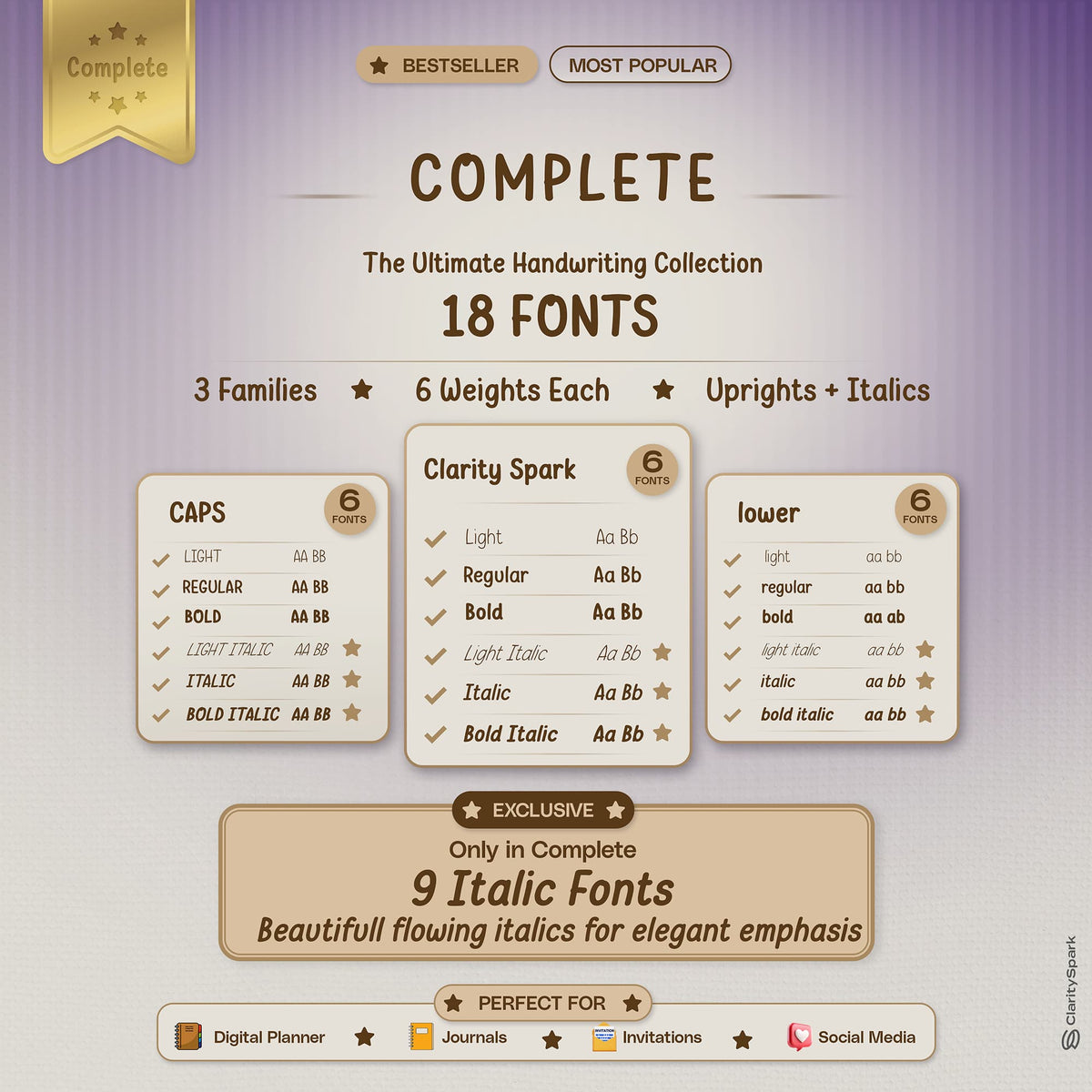
We recommend iFont — it's a free app available on the App Store that makes font installation straightforward. There are other font manager apps available (such as AnyFont), but iFont is the most widely used in the digital planning community and works reliably.
My installed font is not appearing in GoodNotes — what do I do?
My installed font is not appearing in GoodNotes — what do I do?
If you've installed a font through iFont but can't find it in GoodNotes's font list:
- Restart your iPad — this is the most common fix. Fully power off your iPad (hold the power button, slide to power off), wait a few seconds, and turn it back on.
- Open GoodNotes and create a new text box. Tap the font name in the text formatting toolbar and scroll through the list — custom fonts are listed alphabetically alongside the built-in fonts.
- Make sure the font installation actually completed. Open Settings > General > Profiles (or VPN & Device Management) and confirm the font profile is listed there.
- If it's still missing, try uninstalling and reinstalling the font through iFont.
How do I use the Scribble feature to convert handwriting to text?
How do I use the Scribble feature to convert handwriting to text?
Scribble is an Apple feature that converts your handwriting (via Apple Pencil) into typed text in real time. To use it with your custom fonts:
- Enable Scribble: Go to Settings > Apple Pencil > Scribble and toggle it on.
- In GoodNotes, tap to create a text box.
- Select your desired font from the formatting toolbar — including any custom fonts you've installed.
- Start writing with your Apple Pencil inside the text box. Your handwriting will automatically convert to the selected font.
This is especially fun with handwriting-style fonts — you write naturally, and your messy handwriting transforms into a beautiful, consistent hand-lettered look!
How do I set a font as default in GoodNotes text boxes?
How do I set a font as default in GoodNotes text boxes?
GoodNotes remembers the last font and size you used in a text box, so the simplest approach is:
- Create a text box and set it to your preferred font, size, and color.
- From that point forward, new text boxes in that document will default to those same settings.
There isn't a global "default font" setting across all notebooks in GoodNotes, but the app is good at remembering your most recent text formatting choices within each document.
Known App Issues & Bugs
Known GoodNotes 6 bugs affecting digital planners
Known GoodNotes 6 bugs affecting digital planners
GoodNotes regularly releases updates, and occasionally new versions introduce bugs that affect digital planner users. Here are some commonly reported issues to be aware of:
- Elements sorting: Imported .collection sticker packs may not display in alphabetical order (see Category 4 for the workaround).
- Hyperlink responsiveness: Some updates have temporarily affected hyperlink tap accuracy. Always ensure you're on the latest version of GoodNotes to benefit from bug fixes.
- Import glitches: Occasionally, large PDF files may fail to import on the first attempt. Force closing GoodNotes and trying again usually resolves this.
We recommend checking the App Store for GoodNotes updates regularly, as the GoodNotes team actively patches issues. If something feels off after an update, it's likely already on their radar.
"Unsupported File Type" error with .collection files in GoodNotes
"Unsupported File Type" error with .collection files in GoodNotes
If you're trying to import a .collection file (a sticker bundle format) and GoodNotes shows an "Unsupported File Type" error, your version of GoodNotes may not support this format, or the file needs to be handled differently.
Fix: Import the individual PNG sticker files instead of the .collection bundle. Your download should include both formats. Use the Image tool or drag-and-drop method to add individual stickers to your Elements library or directly onto planner pages. See Category 4 for detailed steps.
Stickers/Elements not importing in correct order
Stickers/Elements not importing in correct order
When you import a .collection file into GoodNotes Elements, the stickers may appear in a seemingly random order rather than the neat alphabetical arrangement you'd expect. This is a known GoodNotes limitation — the app doesn't always preserve file order when processing .collection bundles.
Workaround: Import stickers as individual PNGs into Elements via drag-and-drop in Split View. When added one at a time, they maintain the order you place them in. It's a bit more work upfront but gives you full control over organization.
Hyperlinks breaking after deleting and reinserting pages
Hyperlinks breaking after deleting and reinserting pages
If you delete a page from your planner and then reinsert it (or paste it back), the hyperlinks on that page — and links from other pages that pointed to it — will likely stop working. This is because PDF hyperlinks reference specific page positions, and moving pages around breaks those references.
Fix: If your hyperlinks have stopped working due to page edits, the best solution is to re-download a fresh copy of your planner from your order confirmation email and import it as a new document. You can then copy over any notes or stickers from the affected version by using screenshots or the Lasso tool.
Prevention tip: Avoid deleting or rearranging pages within your digital planner whenever possible. Add extra pages at the end instead.
GoodNotes Android/Windows hyperlink limitations
GoodNotes Android/Windows hyperlink limitations
GoodNotes on Android and Windows is still catching up to the iPad version in terms of features. Depending on the version you're using, hyperlinks may have limited or no support. This means tapping tabs and navigation buttons may not work as expected.
If you're an Android or Windows user and hyperlinks aren't functioning, check whether GoodNotes has released updates that address this. In the meantime, you can navigate your planner using the page overview or PDF outline/bookmark features instead. Alternatively, consider trying Xodo or Noteshelf on Android, which may offer better hyperlink support for PDF files.
Orders & Delivery
How will I receive my digital files after purchase?
How will I receive my digital files after purchase?
Your files are delivered instantly — no shipping, no waiting! As soon as your order is confirmed:
- You'll see a download button on the order confirmation page. Tap it to download immediately.
- You'll also receive an order confirmation email with a download link.
We recommend downloading right away on the device you plan to use (ideally your iPad using Safari). Your files are digital, so there's nothing mailed to your physical address.
I didn't receive my order confirmation or download email
I didn't receive my order confirmation or download email
First, check your spam, junk, and promotions folders — order emails sometimes end up there. Also double-check any alternative email addresses you may have used.
If you still can't find it:
- Make sure the email address you entered at checkout was spelled correctly. Unfortunately, if the email address was mistyped, the confirmation will be delivered to the wrong address, and we may not be able to redirect it.
- Wait 15–30 minutes, as there can sometimes be a slight delay.
If the email still hasn't arrived, contact us with your order number (if you have it) or the email address you used, and we'll help you access your files. hello@clarityspark.store
Can I re-download my files?
Can I re-download my files?
Yes! The download link in your order confirmation email can typically be used more than once. If the link has expired or isn't working, reach out to our support team and we'll send you a fresh download link. hello@clarityspark.store
Can I change my email address after ordering?
Can I change my email address after ordering?
Unfortunately, we are unable to change the email address associated with your order after it has been placed. The order confirmation and download link are sent to the email you provide at checkout, so please double-check your email address before completing your purchase.
Can I cancel or modify my order?
Can I cancel or modify my order?
Because our products are digital downloads delivered instantly, orders cannot be cancelled or modified after they are placed. The files are made available immediately upon purchase, so there's no window to intercept the order. Please review your order carefully before checking out.
Do you accept returns or exchanges?
Do you accept returns or exchanges?
Due to the nature of digital products, we do not offer returns, refunds, or exchanges. Once a digital file is downloaded, it cannot be "returned" in the traditional sense. We stand behind the quality of our products, and if you experience any technical issues with your files, we're happy to help troubleshoot and make things right. hello@clarityspark.store
I lost my download files — what do I do?
I lost my download files — what do I do?
Don't panic! Your files are not gone forever. Here's what to do:
- Check your order confirmation email for the original download link — it may still be active.
- Check your Files app or Downloads folder on your device — the files may still be there from your initial download.
If you can't locate anything, contact our support team with your order details and we'll help you get your files back. hello@clarityspark.store
Payments
What payment methods do you accept?
What payment methods do you accept?
We process payments securely through Stripe and accept the following:
- Visa
- Mastercard
- American Express
- Discover
- JCB
- Diners Club
- Apple Pay
- Google Pay
All transactions are encrypted and secure. We never store your full payment details on our servers.
My payment was declined — what should I do?
My payment was declined — what should I do?
Payment declines can happen for several reasons. Try these steps:
- Double-check your card details — make sure the card number, expiration date, and security code (CVV) are entered correctly.
- Verify available funds — ensure your card or account has sufficient balance.
- Try a different payment method — switch to another card or use Apple Pay / Google Pay.
- Contact your bank or card issuer — sometimes banks flag online purchases as unusual activity. A quick call to your bank can resolve the hold.
If you've tried everything and the payment still won't go through, feel free to reach out to us and we'll do our best to help. hello@clarityspark.store
Are prices in USD or local currency?
Are prices in USD or local currency?
Our prices are listed in USD (United States Dollars). Depending on your location and payment method, your bank may automatically convert the charge to your local currency. Please note that your bank may apply a small currency conversion fee — this is determined by your financial institution, not by us.
Do you offer discount codes or sales?
Do you offer discount codes or sales?
We do run promotions and sales from time to time! The best way to stay in the loop is to:
- Follow us on social media
- Subscribe to our email newsletter
If you have a discount code, enter it at checkout in the discount/promo code field before completing your purchase. Codes cannot be applied after an order has been placed.
Device & App Compatibility
What iPad models are compatible?
What iPad models are compatible?
Any iPad that is still receiving Apple software updates (iPadOS updates) will work great with our digital planners. This includes recent models of the iPad, iPad Air, iPad Mini, and iPad Pro. If your iPad is running iPadOS 15 or later, you should have no compatibility issues with GoodNotes and our planner files.
Older iPad models that are no longer supported by Apple may run into performance or compatibility issues. If you're unsure whether your iPad is still supported, check Apple's website for their list of iPadOS-compatible devices.
Can I use the planner on an iPhone or Mac?
Can I use the planner on an iPhone or Mac?
Yes! If you use a note-taking app that syncs across Apple devices via iCloud, you can access your planner on your iPhone or Mac too.
- GoodNotes supports iCloud sync and is available on iPad, iPhone, and Mac. Set up your planner on your iPad, enable iCloud sync, and it will appear on your other Apple devices automatically.
- The experience is best on iPad due to the larger screen and Apple Pencil support, but iPhone works well for quick reference, and Mac is handy for reviewing your planner at a desk.
Can I use the planner on an Android tablet?
Can I use the planner on an Android tablet?
Yes, though the experience may differ slightly from iPad. Our planners work with several Android-compatible note-taking apps:
- Noteshelf — solid PDF annotation and sticker support
- Xodo — a reliable free option with good PDF hyperlink support
- GoodNotes for Android — now available, though hyperlink support may be limited depending on the version
We recommend trying a couple of apps to see which one feels best for your workflow. For the fullest feature support (especially hyperlinks and stickers), iPad with GoodNotes remains our top recommendation.
Which Android apps are recommended?
Which Android apps are recommended?
For Android tablets, we suggest:
- Xodo — free, handles hyperlinked PDFs well, and supports annotation
- Noteshelf — paid app with a polished interface and sticker support
- GoodNotes for Android — growing in features but may still have limitations with hyperlinks
Each app handles PDF annotation slightly differently. If hyperlink navigation is your priority, test each app with your planner to see which gives the smoothest experience.
Is the planner compatible with Microsoft OneNote?
Is the planner compatible with Microsoft OneNote?
No — our planners are not compatible with Microsoft OneNote. OneNote does not support PDF hyperlinks in the way that apps like GoodNotes and Notability do. Importing a planner into OneNote would give you a static set of pages without any of the interactive navigation features.
Is the planner compatible with Notability, CollaNote, or other apps?
Is the planner compatible with Notability, CollaNote, or other apps?
Yes! Our planners work with:
- Notability — full support for PDF viewing and annotation; hyperlink support may vary by version
- CollaNote — a free iPad app that supports PDFs and basic hyperlinks
- Noteshelf — works on both iPad and Android
- Notes+ — an iPad app with PDF annotation support
The best experience will always be with GoodNotes, as our planners are designed and tested primarily for that app. But these alternatives all handle the core planning experience well.
Can I use the planner on a Windows PC or Chromebook?
Can I use the planner on a Windows PC or Chromebook?
Our planners are not designed for Windows PCs or Chromebooks. While you can technically open a PDF on these devices, note-taking apps on Windows and Chrome OS generally lack the stylus input, hyperlink support, and sticker features that make digital planning enjoyable. Some users have had success with Xodo on Windows for basic annotation, but we can't guarantee full functionality.
For the best experience, we recommend using a tablet with a stylus — an iPad is ideal, and Android tablets are a solid alternative.
Does my planner sync across devices?
Does my planner sync across devices?
Your planner syncs across devices through your note-taking app, not through the planner itself. Here's how:
- GoodNotes syncs via iCloud (on Apple devices) and GoodNotes Cloud (GoodNotes 6). Any changes you make on your iPad will automatically appear on your iPhone and Mac.
- Notability also syncs via iCloud across Apple devices.
- Android apps — syncing depends on the specific app. Check the app's settings for cloud backup options.
Make sure cloud sync is enabled in your app's settings, and ensure all your devices are signed into the same account.
Product Information
What is included in my planner purchase?
What is included in my planner purchase?
Your purchase typically includes:
- The digital planner PDF file (the main planner)
- A setup guide or instruction sheet explaining how to download and import your planner
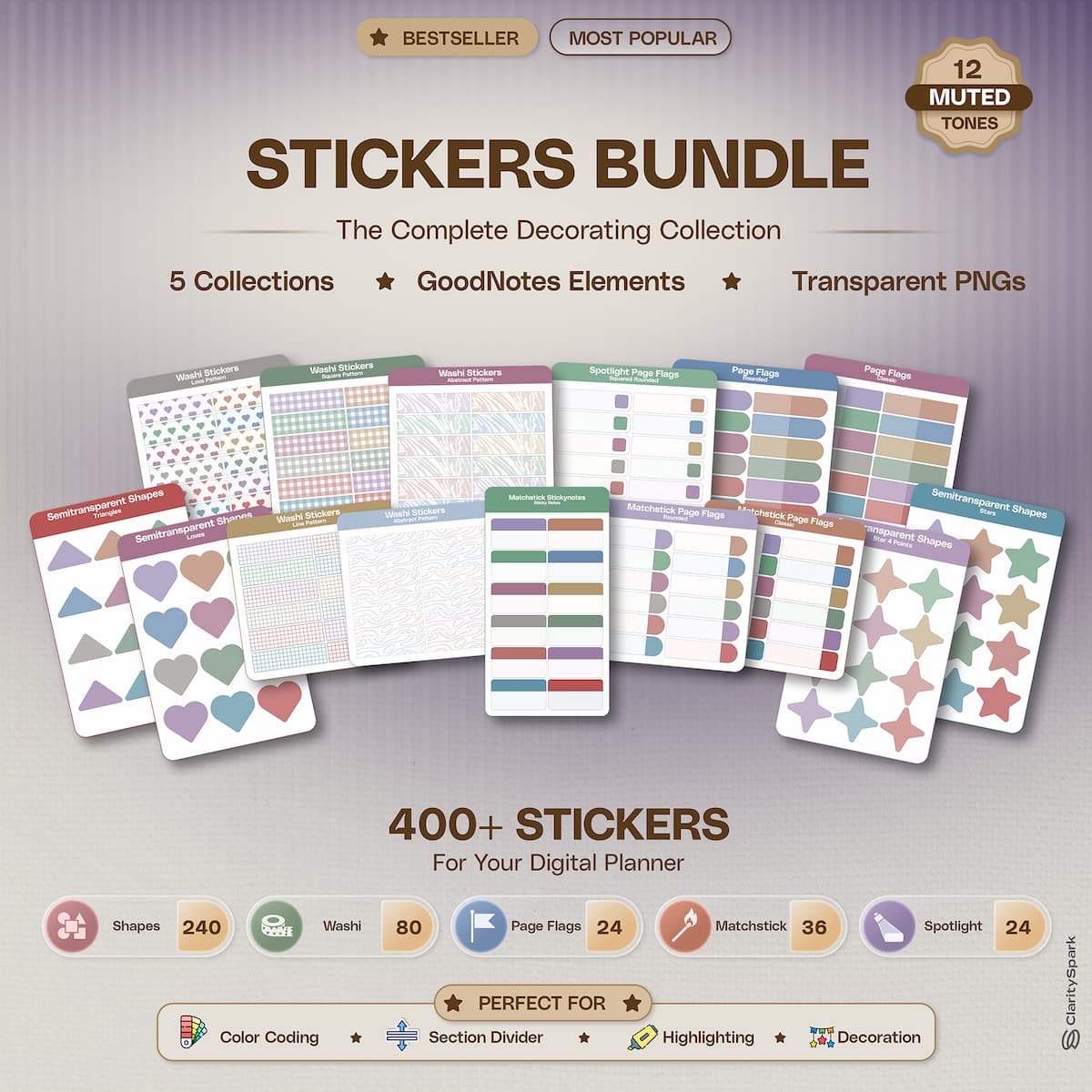
- Depending on the product, you may also receive bonus stickers, cover options, or a download dashboard PDF that helps you choose your planner layout, sticker packs, and covers from the available options
Check the product description on the product page for a detailed list of everything included in your specific purchase.https://www.clarityspark.store
Are there differences between the website version and Marketplace versions?
Are there differences between the website version and Marketplace versions?
Yes! Planners sold through our website may include more customization options, such as additional color themes, layout variations, cover designs, and bundled sticker packs, compared to versions sold through the GoodNotes Marketplace or other third-party platforms.
The Marketplace versions are often streamlined with fewer layout and color options due to platform limitations. For the fullest selection and best value, we recommend purchasing directly from our website.
Do you offer undated planners?
Do you offer undated planners?
Yes! We offer both dated and undated planner versions. Undated planners are perfect if you want to start planning at any time of the year without wasting pages. Check our shop for current availability.https://www.clarityspark.store
Do you take custom planner orders?
Do you take custom planner orders?
We are not currently accepting custom planner orders. All of our available products can be found in our shop. We're always working on new designs and layouts, so follow us on social media or subscribe to our newsletter to stay updated on new releases!
What file formats are included in the download?
What file formats are included in the download?
Your download will include PDF files (the planner itself) and PNG files (for stickers and cover options, if included). Some sticker packs may also include .collection files for direct import into GoodNotes Elements. Everything comes bundled in a .ZIP file that you'll unzip before use.
GoodNotes supports PDF, DOCX, and PPT imports, but our planners are always provided as PDFs for the best hyperlink and annotation experience.
Reporting Errors & Getting Help
I found a typo or hyperlink error in my planner
I found a typo or hyperlink error in my planner
We take quality seriously, and we genuinely appreciate you letting us know! If you spot a typo, a broken hyperlink, or any error in your planner, please reach out to us through our contact form with the following details:
- The product name (and dated version, if applicable)
- The page or section where you found the error
- A screenshot if possible (this helps us locate the issue quickly)
We'll investigate and, if it's an error on our end, we'll work on a fix and make an updated version available. Your feedback helps us improve our products for everyone!
How do I contact support?
How do I contact support?
We're here to help! You can reach our support team through:
- Contact form
- Email: hello@clarityspark.store
We do our best to respond within 24–48 business hours. When reaching out, please include as much detail as possible (your order number, the product name, a description of the issue, and screenshots if applicable). The more info you share, the faster we can help!
Where can I find setup guide videos and tutorials?
Where can I find setup guide videos and tutorials?
We have video tutorials to walk you through everything from downloading your files to navigating your planner like a pro. You can find our full library of tutorials here:
- Setup guide video:
- Tutorial playlist:
- Font installation tutorial:
If you prefer written instructions, this Help Library covers everything you need. But if you're a visual learner, the videos are a great place to start!
Backup & Data Safety
How do I back up my planner so I don't lose my work?
How do I back up my planner so I don't lose my work?
Protecting your planner and all the notes you've added is important. Here are the best ways to keep a backup:
- Enable iCloud sync in GoodNotes (see below). This automatically backs up your notebooks to iCloud, so even if something happens to your device, your planner is safe in the cloud.
- Export a copy manually: Periodically export your planner as a PDF from GoodNotes (Share > Export > PDF) and save it to your Files app, Google Drive, Dropbox, or another cloud storage service.
- Keep your original download files stored safely in a cloud service. That way, if you ever need a clean copy of the planner, you have it ready to go.
We recommend doing a manual backup at least once a month, even with iCloud sync enabled — it's an extra layer of protection.
What happens if my iPad breaks or I get a new device?
What happens if my iPad breaks or I get a new device?
If your planner is stored in GoodNotes with iCloud sync enabled, your notebooks will automatically appear on your new device once you sign into the same Apple ID and install GoodNotes. No manual transfer needed!
If you weren't using iCloud sync:
- Check whether your old device has an iCloud or iTunes backup — restoring from that backup may bring your GoodNotes data back.
- If all else fails, you can always re-download your original planner files from your order confirmation email and start fresh.
This is a great reminder to make sure iCloud sync is turned on — future-you will thank you!
Does GoodNotes auto-save my work?
Does GoodNotes auto-save my work?
Yes! GoodNotes automatically saves your work as you go. There's no "save" button to press — every pen stroke, text entry, and sticker placement is saved in real time. If the app closes unexpectedly or your iPad runs out of battery, your work should be right where you left it when you reopen the app.
That said, auto-save protects your work within the app, but it's not a substitute for backing up to the cloud (see iCloud sync) in case something happens to the app or your device.
How do I enable iCloud sync in GoodNotes?
How do I enable iCloud sync in GoodNotes?
Turning on iCloud sync ensures your planner is backed up and accessible across all your Apple devices:
- Open GoodNotes and go to Settings (gear icon).
- Look for iCloud or Cloud & Backup settings.
- Toggle iCloud sync to on.
- Make sure iCloud is also enabled at the device level: go to your iPad's Settings > [Your Name] > iCloud and ensure GoodNotes is toggled on in the list of apps using iCloud.
Once enabled, your notebooks will sync automatically. Changes made on your iPad will appear on your iPhone and Mac (and vice versa) within minutes.
Exporting & Sharing
How do I export my planner as a PDF?
How do I export my planner as a PDF?
You can export your planner (with all your handwriting and stickers) from GoodNotes at any time:
- Open your planner in GoodNotes.
- Tap the Share icon (square with an upward arrow).
- Choose Export All to export the entire planner, or go to the page overview and select specific pages to export.
- Select PDF as the format.
- Choose your PDF data format — see the next question for why this matters.
- Pick where to save or send the file (Files app, email, AirDrop, etc.).
What is the difference between "Flattened" and "Editable" PDF export?
What is the difference between "Flattened" and "Editable" PDF export?
When exporting from GoodNotes, you'll be asked to choose a PDF format:
- Editable: Preserves your hyperlinks and keeps annotations as separate layers. Choose this if you want to reimport the planner later or share it with someone who needs the interactive features to work.
- Flattened: Bakes all your handwriting and stickers into the PDF permanently and removes hyperlinks. Choose this if you're exporting to print or to create a final, non-editable version.
Rule of thumb: Use "Editable" to preserve functionality, and "Flattened" when printing or sharing a finished page.
Can I share my planner with someone else?
Can I share my planner with someone else?
You can share exported pages (like a specific weekly spread with your notes) with others by exporting and sending the PDF. However, sharing the original purchased planner file with others is not permitted under our licensing terms — each purchase is for personal, single-user use only. See our licensing question below for more details.
Can I print pages from my digital planner?
Can I print pages from my digital planner?
Yes! You can print individual pages or sections:
- Export the pages you want to print as a Flattened PDF (this ensures your handwriting and stickers are included).
- Open the exported PDF and use your device's print function to send it to a compatible printer.
- For best results, print at full size (letter or A4) and select "Fit to Page" in your print settings.
Printing is great for pinning up your monthly overview, sharing a meal plan with family, or keeping a paper backup of important pages.
Storage & Performance
My planner is running slowly — what can I do?
My planner is running slowly — what can I do?
Large planners with many pages, stickers, and annotations can sometimes slow down. Here are some tips to improve performance:
- Close other apps running in the background to free up memory.
- Update GoodNotes to the latest version — performance improvements are included in many updates.
- Restart your iPad — this clears temporary memory and often makes a noticeable difference.
- Check your storage space — if your iPad is nearly full, it can affect app performance. Go to Settings > General > iPad Storage to check.
- Reduce sticker density — if you've added a lot of stickers to a single page, it can slow rendering. Try to keep heavily decorated pages to a reasonable number of elements.
Delete unused notebooks in GoodNotes to reduce the app's overall workload.
How much storage space do digital planners typically use?
How much storage space do digital planners typically use?
A single digital planner PDF typically ranges from 50 MB to 300 MB, depending on the number of pages, embedded graphics, and resolution. Sticker packs and covers add additional storage. As you write and add stickers throughout the year, the file size may grow slightly.
A good rule of thumb: keep at least 2–3 GB of free storage on your device for a smooth digital planning experience, especially if you use multiple planners or have large sticker collections.
Can I delete pages I don't need to save space?
Can I delete pages I don't need to save space?
Technically yes — you can delete unused pages from your planner in GoodNotes through the page overview. However, we recommend caution for two reasons:
- Deleting pages can break hyperlinks — if other pages link to the deleted page, those links will stop working.
- You can't undo a page deletion once you've moved past the undo history.
If storage is a concern, a better approach is to export and archive completed months or sections as separate PDFs, then keep only the current section active in GoodNotes.
Privacy & Licensing
Can I share my purchased planner files with friends or family?
Can I share my purchased planner files with friends or family?
We love that you want to spread the digital planning joy! However, each planner purchase is licensed for personal, single-user use only. Sharing the original planner files with others — whether by sending the file, posting a download link, or any other method — is not permitted. If a friend or family member would like their own copy, they're welcome to purchase one from our shop.https://www.clarityspark.store
What is the licensing policy for these digital products?
What is the licensing policy for these digital products?
Our digital products are sold under a personal-use license. This means:
- You may use the planner on your own devices for personal planning and organization.
- You may not redistribute, resell, or share the files with others.
- You may not use the planner designs, stickers, or fonts in commercial products or for resale purposes.
- Making backup copies for your own use is absolutely fine and encouraged.
If you have questions about licensing for a specific use case, feel free to contact us. hello@clarityspark.store
Is my personal information safe when I shop here?
Is my personal information safe when I shop here?
Your privacy and security are important to us. Our store operates on Shopify, a trusted e-commerce platform used by millions of businesses worldwide. All transactions are processed through Stripe, which uses industry-standard encryption to protect your payment information. We never see or store your full credit card number. For full details, please review our Privacy Policy.
GoodNotes Power-User Tips
How do I use the Lasso tool to move or resize elements?
How do I use the Lasso tool to move or resize elements?
The Lasso tool is one of the most useful tools for digital planning. It lets you select, move, resize, and rearrange handwriting, stickers, and other elements:
- Tap the Lasso tool in the GoodNotes toolbar (it looks like a dotted circle or lasso shape).
- Draw a circle around the element(s) you want to select.
- Once selected, you can drag the selection to a new position, resize it by pulling the corner handles, change the color of handwriting, cut/copy/paste, or delete the selection.
Pro tip: The Lasso tool is perfect for rearranging your daily to-do list, moving a sticker that's slightly out of place, or resizing handwriting that ended up too large.
How do I change the pen color or font color in GoodNotes?
How do I change the pen color or font color in GoodNotes?
- Pen color: Tap the pen tool, then tap the color circle next to it in the toolbar. You'll see preset colors and the option to create custom colors using a color picker or hex codes. You can save your favorite colors as presets for quick access.
- Text/font color: Create a text box (or tap an existing one), select the text you want to recolor, and tap the color option in the text formatting toolbar. The process is similar to changing pen color — you can choose from presets or pick a custom color.
Quick fix: If you want all your text boxes to use the same color, set it once and GoodNotes will remember that color for new text boxes in the same document.
How do I use split-screen view on iPad with my planner?
How do I use split-screen view on iPad with my planner?
Split View is incredibly useful for digital planning — you can have your planner open on one side and a reference document, web browser, or sticker folder on the other:
- Open your planner in GoodNotes.
- Swipe up from the bottom of the screen to open the Dock.
- Drag another app (like Files, Safari, or Photos) from the Dock to the left or right edge of the screen.
- The screen will split, showing both apps side by side. You can drag the divider to adjust how much space each app gets.
This is especially handy for dragging stickers from your Files app directly into your planner, referencing a recipe while meal planning, or looking up information while you plan your week.
How do I use the Favorites/Bookmarks feature for quick navigation?
How do I use the Favorites/Bookmarks feature for quick navigation?
Bookmarking your most-used pages saves you from scrolling through hundreds of pages:
- Navigate to the page you want to bookmark.
- Tap the bookmark icon (or star icon, depending on your GoodNotes version) — usually found in the top toolbar or page menu.
- The page is now saved to your bookmarks/favorites list.
- To access bookmarked pages, tap the outline/bookmark panel icon (looks like a list or book icon in the toolbar). You'll see all your bookmarked pages listed for one-tap navigation.
Pro tip: Bookmark your current week's spread, habit tracker, and any other pages you visit daily. It makes opening your planner and getting straight to work effortless.
Still have questions?
We're always happy to help! Reach out to our support team and we'll get back to you as soon as possible.